
● Set up · Resend
E-mail
bookings and messages to the business.
Answerbell sends e-mail through Resend with your API key: one HTTPS call per e-mail, no SMTP server.
01What it costs
Billed by Resend, not included
Resend has a free tier and paid plans: resend.com/pricing.
02Set it up
- Resend → Domains → Add domain. Add the DNS records it shows at your DNS provider and wait until the domain is verified.
- Resend → API Keys → Create (sending access is enough). Paste it under Integrations → Resend API key and press Test connection.
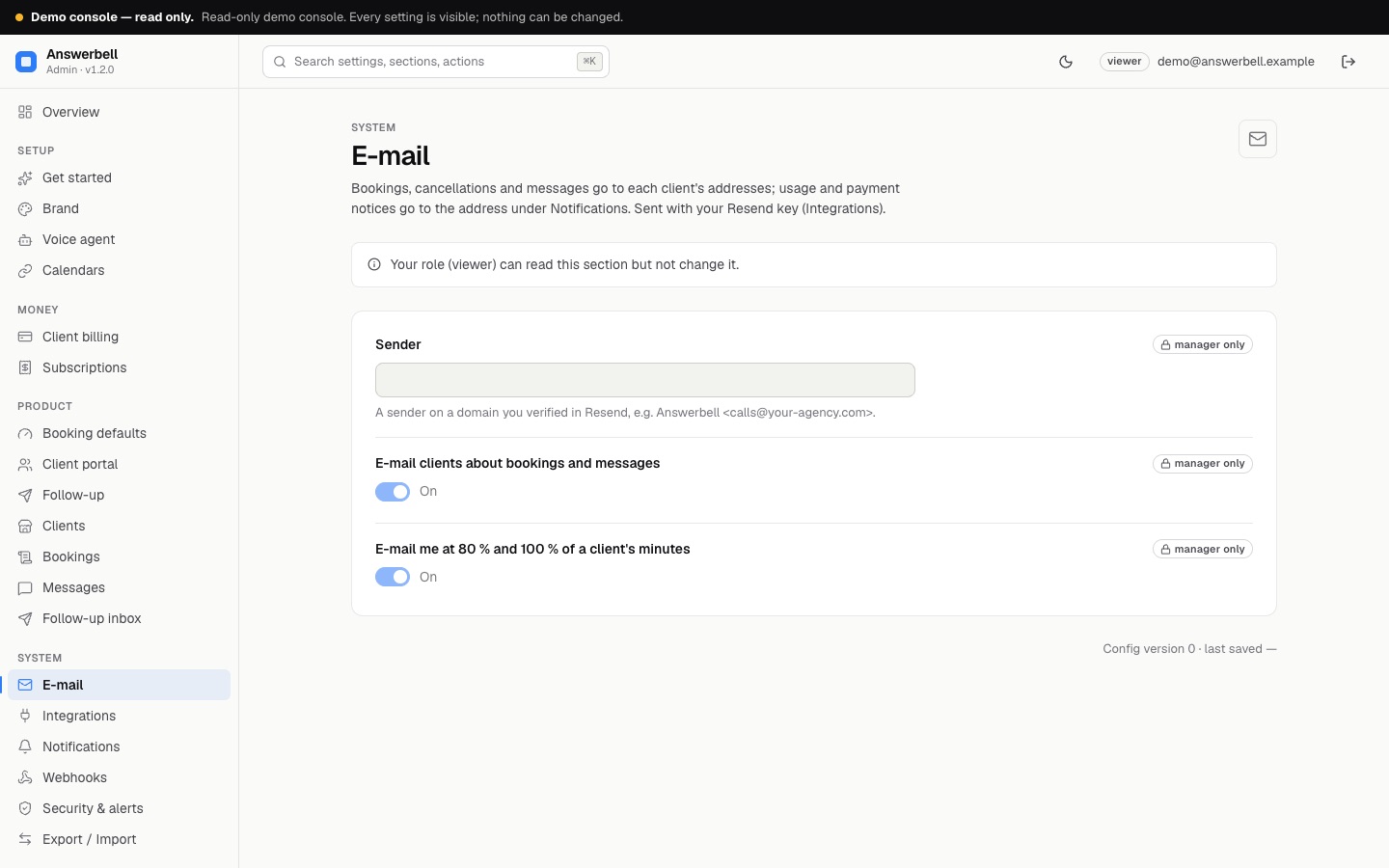
- Console → E-mail → Sender: an address on that domain, e.g.
Answerbell <calls@your-agency.com>. - Console → Notifications → Send alerts to: your own address.
Replies go to Brand → Support email when it is set.
03Which e-mails are sent
| To | Language | |
|---|---|---|
| New booking, cancelled booking, new message (urgent ones marked) | the client's addresses | the client's language |
| 80 % and 100 % of a client's included minutes | your Notifications address | English |
| A client's subscription payment failed | your Notifications address | English |
Turn the client e-mails or usage notices off under E-mail. The Status page shows whether the last e-mail was sent and, if not, why.