
Stripe
a monthly plan per client.
Answerbell charges each client business a monthly subscription in your own Stripe account. Optional: leave the keys empty and invoice clients your own way.
01What it costs
Stripe charges its fee on each payment your clients make: stripe.com/pricing.
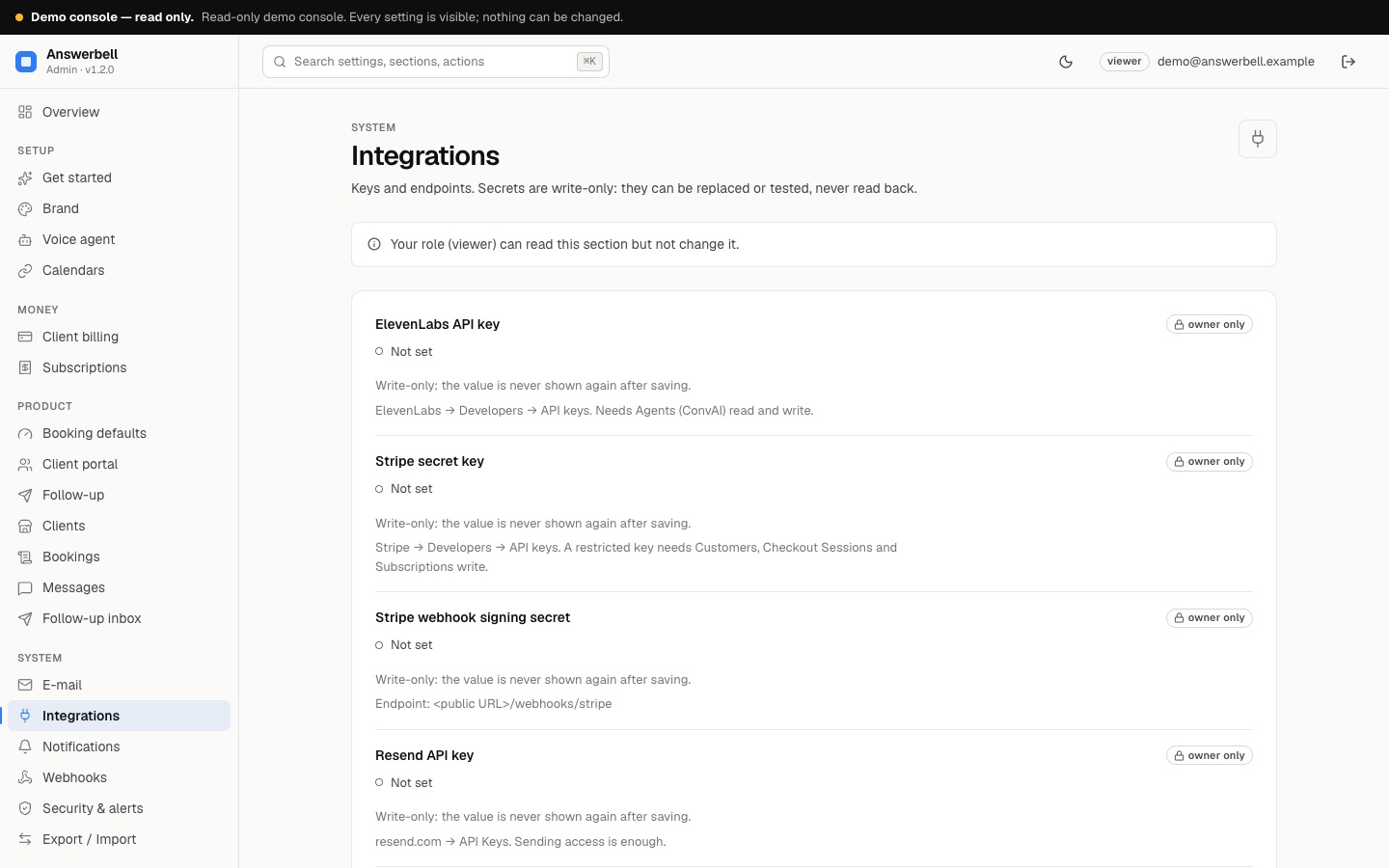
02Keys
- In Stripe: Developers → API keys. Use the secret key (
sk_test_…while testing,sk_live_…in production) or a restricted key with write access to Customers, Checkout Sessions and Subscriptions. - In Answerbell: Integrations → Stripe secret key, then Test connection (it says whether it is a test or live key).
03Webhook
- In Stripe: Developers → Webhooks → Add endpoint. URL:
https://<your public URL>/webhooks/stripe. - Events:
checkout.session.completed,customer.subscription.created,customer.subscription.updated,customer.subscription.deleted,invoice.paid,invoice.payment_failed. - Signing secret: copy the endpoint's
whsec_…into Integrations → Stripe webhook signing secret.
Requests without a valid signature, or older than five minutes, are refused. Each event is applied once, even if Stripe sends it again.
04Charging a client
- Set the price: the client's monthly price (in the currency under Client billing) and billing e-mail.
- Create payment link on the client. Answerbell creates a Stripe customer and a Checkout page for a monthly subscription at that price; send the link to the business.
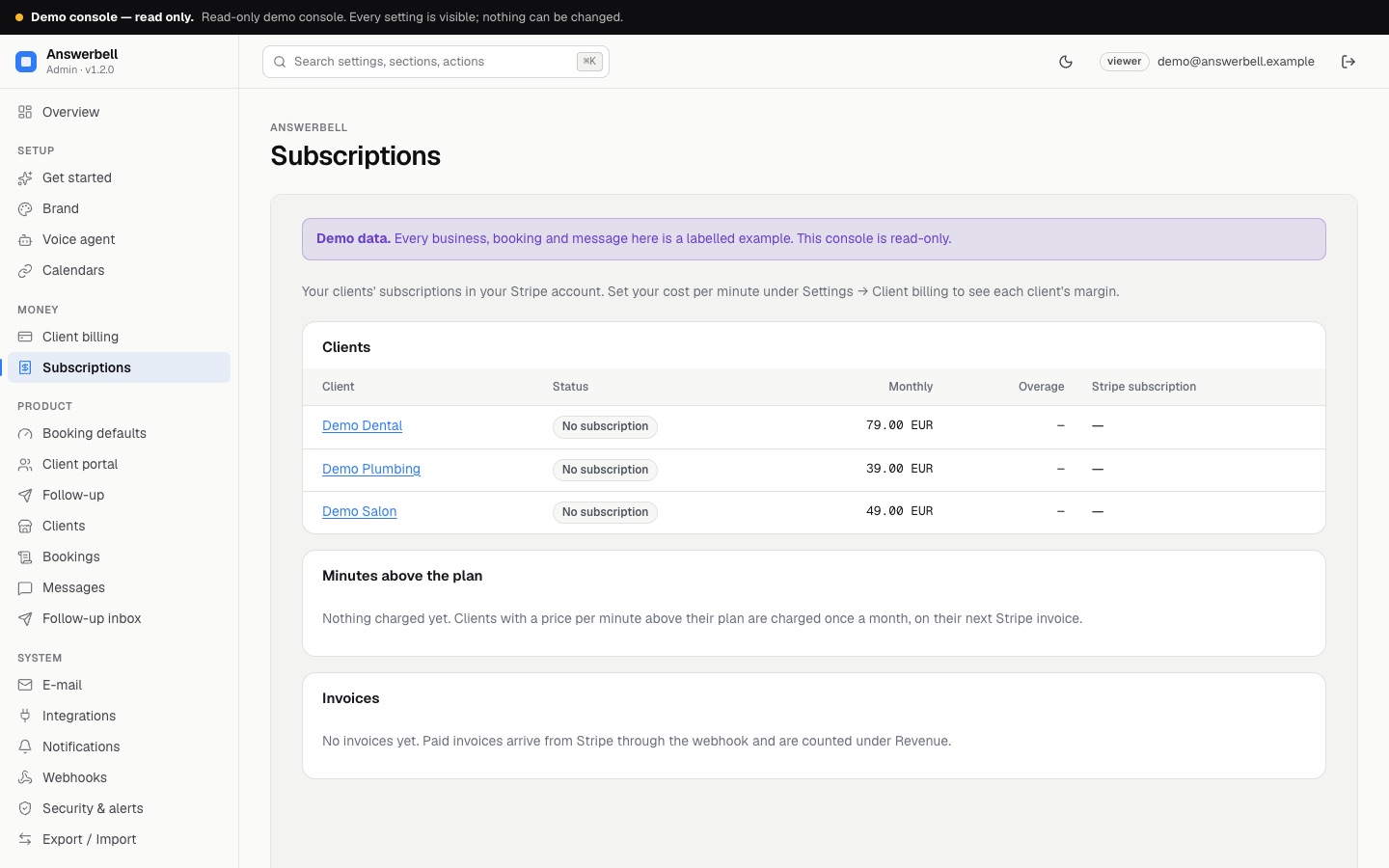
- When the business pays the subscription shows active. Each paid invoice appears under Subscriptions and in Revenue, with the Stripe invoice id.
- A failed payment e-mails you (Notifications address) and the status becomes
past_due. Stripe retries on its own schedule.
Cancel subscription cancels it in Stripe immediately. A price change applies to new payment links; change a running subscription in the Stripe dashboard. Revenue counts only invoices Stripe reports as paid; Contracted per month adds the prices of clients with an active subscription.
05Minutes above the plan
Set Price per minute above the plan on the client's Plan (empty = no overage billing). Once a month the minutes above the included minutes are added to the client's next Stripe invoice as one invoice item; each month is charged only once, even if the job runs again. Spam and blocked calls are not counted (Blocking and spam). The Subscriptions page lists what was charged.
06The business pays and downloads invoices itself
In the client portal, Payments and invoices opens Stripe's own billing page, where the business changes its card, downloads invoices or cancels. Configure that page in your Stripe dashboard (Settings → Billing → Customer portal).